Welcome to your Nearfield trial
You're trialling PIIQ — Nearfield's tool for finding and redacting personal information in documents and producing a defensible SAR / DSAR disclosure.
PII — personal information: names, addresses, emails, phone numbers and other identifiers. This is what PIIQ redacts.
SAR / DSAR — a (Data) Subject Access Request: a person's request for their own data. You disclose theirs and redact everyone else's.
Redaction — blacking out personal data so it can't be read in the disclosed file.
What PIIQ is
PIIQ scans a folder of documents, finds the people and personal details inside them, and redacts them — turning a job that normally takes days of manual reading and blacking-out into one you finish in minutes or hours. It keeps all of your work for a case in one place so you can review, correct and produce the final report.
What to expect
It's not about the initial accuracy — it's about the speed to get to accuracy
PIIQ finds and redacts; you review and fix — it's not fire-and-forget, and that's the point. What matters isn't how much the first pass catches, but how quickly you reach a correct, shippable result. The test of your trial isn't "did it catch every single name and address?" No tool catches everything. The test is: can I run and triage this SAR faster than by hand? With PIIQ that's minutes or hours, not days — because a missed name or an over-redaction is one click to fix, everywhere it appears.
What this is not
- It is not a 100% automatic redactor — no tool is, and we've never claimed it.
- It is not judged on raw recall — it's judged on how fast you reach a correct, shippable result.
- It is not a black box — you can see, tune and override every decision.
Using this page
New to PIIQ? Open Get started for your first SAR step by step, or the Worked example to see the whole process on one document. New to the terminology — Discovery, Hunters, Data Subject and so on? The Glossary explains them all. Otherwise pick a topic from the menu, or use the search box. If you're stuck, Get support is always one click away.
Glossary
Every term used in this guide, in one place. The most important ones are also defined inline, where they're used — this is the full reference.
The stages
People & lists
Running & cost
Request types
Get started
Your first SAR, step by step. The whole thing takes minutes to set up.
Data subject — the person a request is about. Their personal data is kept in the disclosure; everyone else's is redacted as a third party.
SAR / DSAR — a (Data) Subject Access Request: one person asking for their own data. You name them as the data subject.
FOIA — a general disclosure with no named subject — PIIQ redacts everyone's personal data. Full list in the Glossary.
- Open your case folder. On the Home tab, click Select Working Directory and choose the folder with the documents.
- Say who the request is about. On the Identity tab, add the data subject's name.
- Run Discovery to scope which files matter. It's free — run it as often as you like.
- Run the Hunters to find names, jobs and addresses. You'll see the credit cost before anything runs.
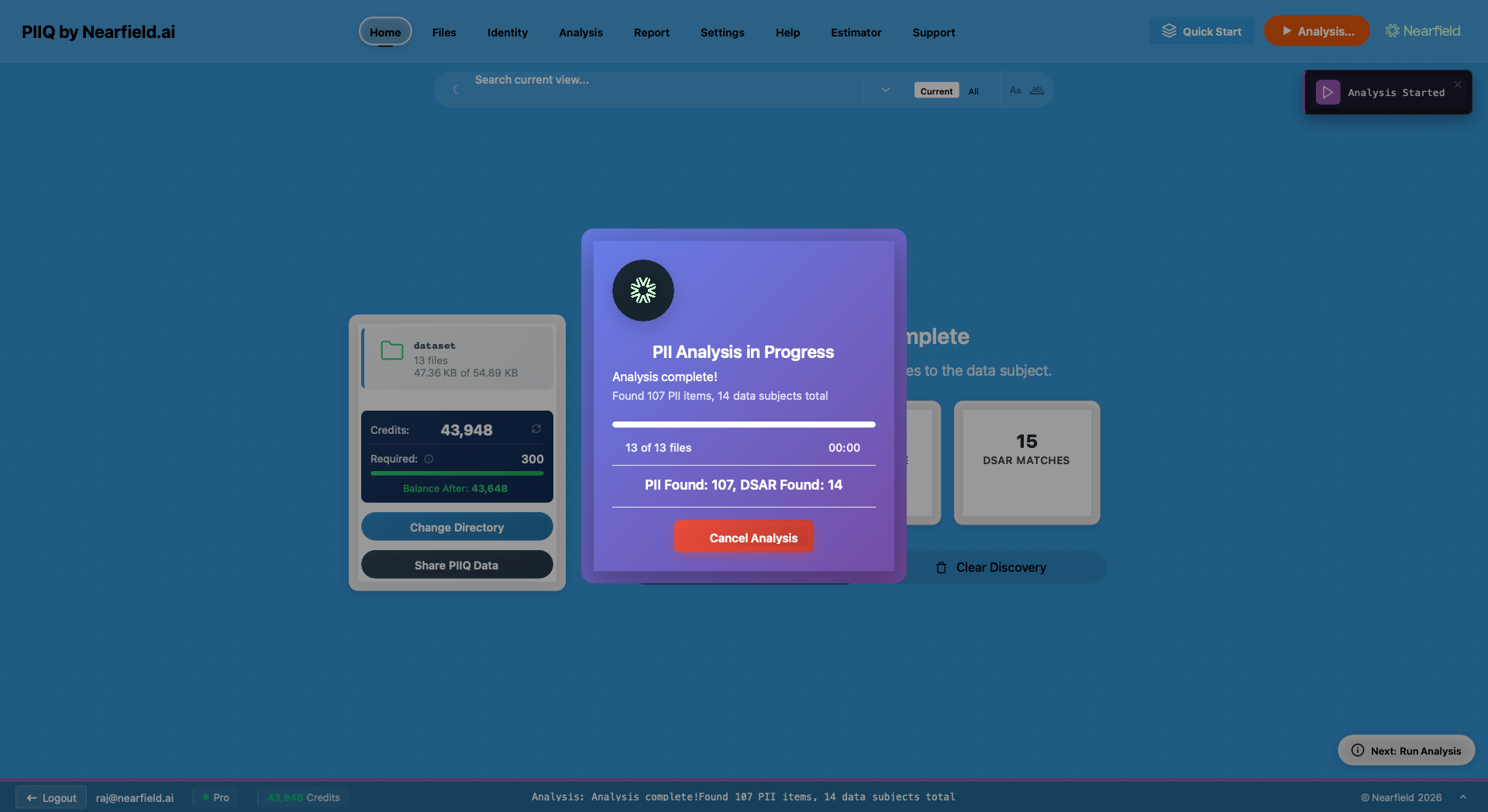
- Run Analysis to mark everything found, then review the highlighted documents and fix anything in a click.
- Print the Report — your redacted disclosure, ready to send.
The one-press way
The quickest path is the green Start button in the top bar. Press it on an open folder and PIIQ walks the whole pipeline for you — asking only what it needs, and skipping any step that's already done and still up to date.
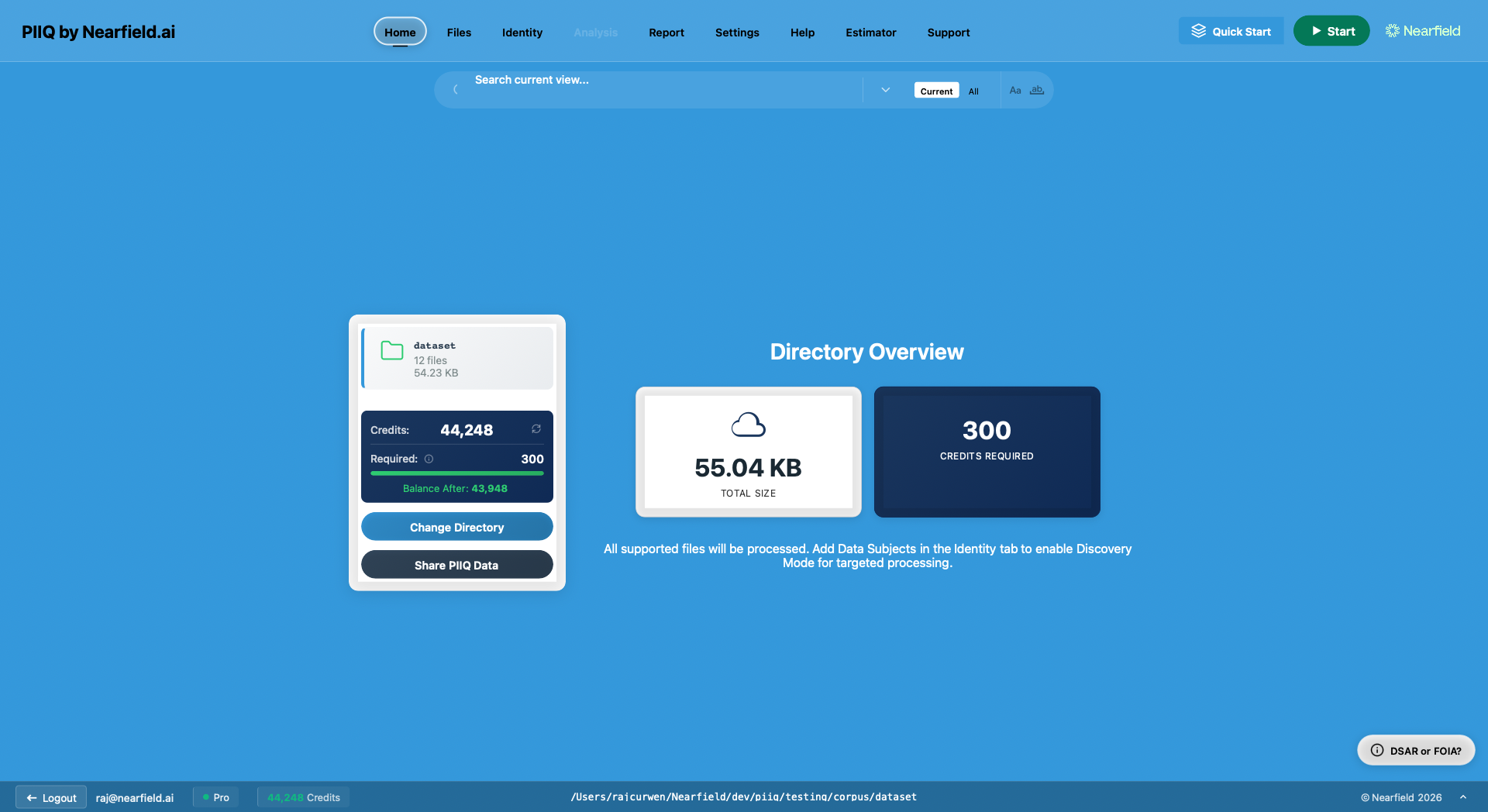
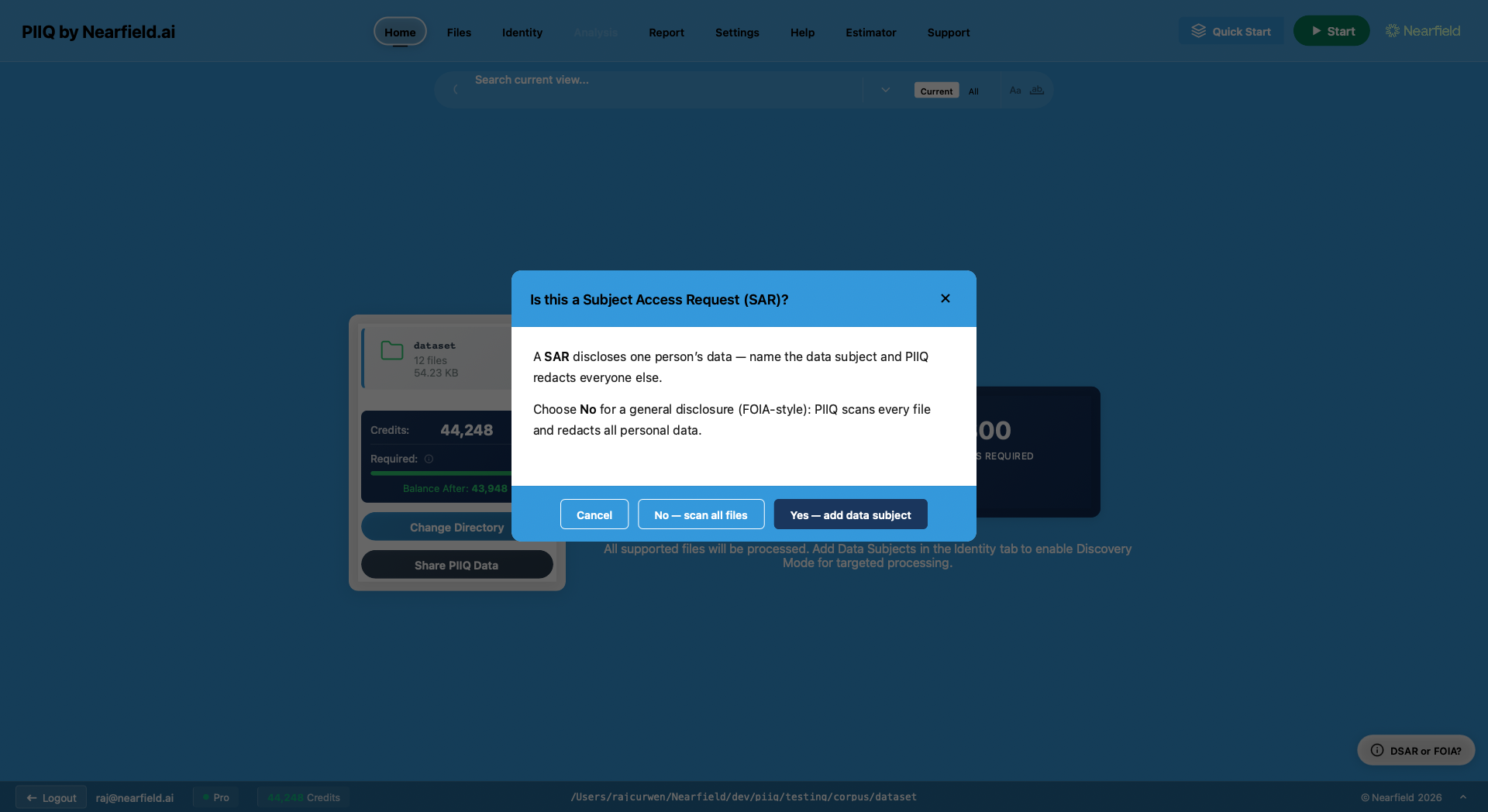
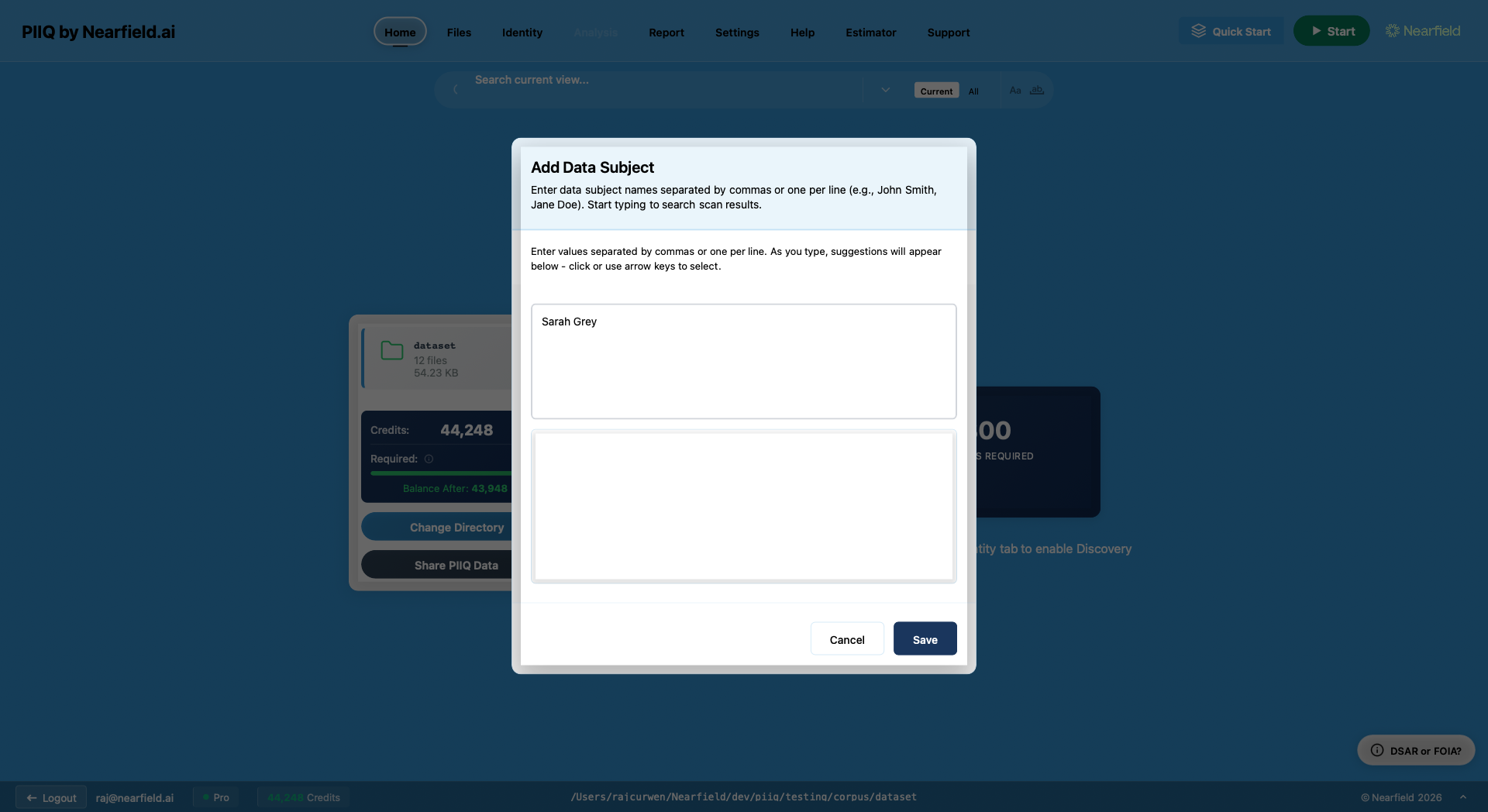
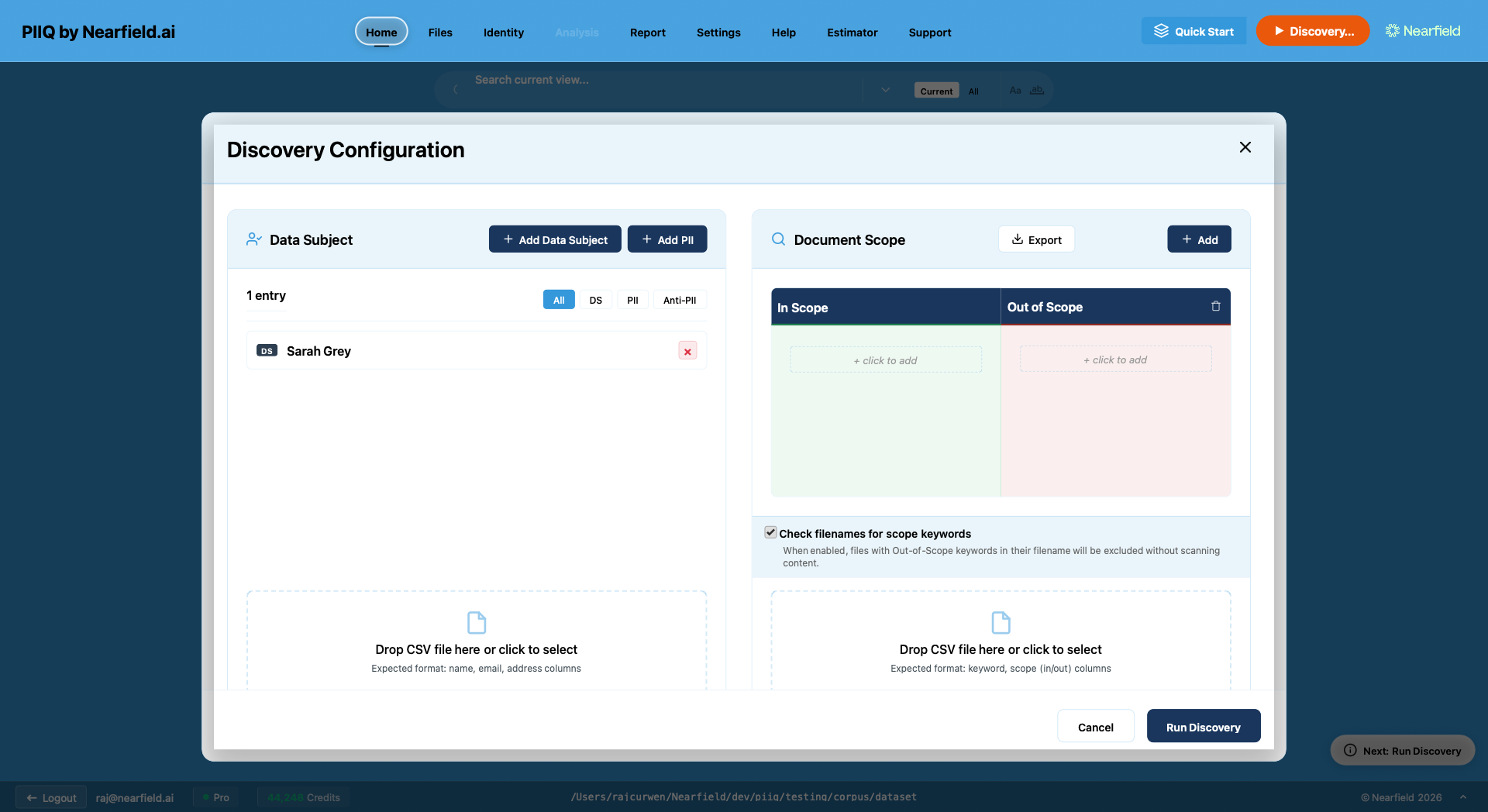
Want to see it on a real document first? Open the Worked example. For each step's settings, see The workflow.
Supported files
Point PIIQ at a mixed folder — Word (DOC/DOCX), PDF, Excel (XLS/XLSX), PowerPoint, plain text and CSV, plus Outlook mailboxes (PST) and emails (MSG/EML). Mailboxes and Office files are converted to text automatically before scanning.
A worked example
Here's the whole process on one document from a school SAR — find the personal data, decide what's disclosed, and produce the redacted result.
Made-up example
Everything below — the people, school, email and details — is a fictional scenario created for this guide. Any resemblance to real individuals is coincidental.
Data subject — the person the SAR is about (here, the pupil Sarah Grey). Their personal data is kept.
Third party — anyone else who appears (her father, the staff). Their personal data is redacted.
1. The document
An internal email about Sarah Grey, the pupil the request is about. Names, email addresses and references in here are all personal data that has to be assessed.
Dear Emma,
I am writing to share my growing concerns about Sarah Grey in my form group (9C). Over the past few weeks I have noticed a marked change in her behaviour and engagement.
Last week there was an incident during break time (IR-2024-0347 refers). I spoke briefly with Sarah's father, Thomas Grey, afterwards. He mentioned that Sarah has been reluctant to come to school.
I wonder whether a referral to Jane in SENCO might be appropriate at this stage.
Kind regards,
Lisa Cheng
Form Tutor - 9C
Greenfield Academy
2. What PIIQ finds
Discovery scopes the file in, then the Hunters and Analysis detect the personal data and highlight it in context on the Analysis screen — yellow for personal data that will be redacted, cyan for the data subject, who is kept:
Dear Emma,
I am writing to share my growing concerns about Sarah Grey in my form group (9C). Over the past few weeks I have noticed a marked change in her behaviour.
Last week there was an incident during break time (IR-2024-0347 refers). I spoke briefly with Sarah's father, Thomas Grey, afterwards.
I wonder whether a referral to Jane in SENCO might be appropriate at this stage.
Kind regards,
Lisa Cheng
Form Tutor - 9C
Greenfield Academy
The same findings, laid out as a checklist you can review — each item, its type, who it belongs to, and what happens to it:
| Detected | Type | Belongs to | In this SAR |
|---|---|---|---|
| Sarah Grey | Name | Data subject — the request is about her | Keep |
| Thomas Grey | Name | Third party — her father | Redact |
| Lisa Cheng, Emma Wilson, Jane Smith | Name | Third parties — staff | Redact |
| l.cheng@…, e.wilson@…, j.smith@… | Third parties — staff contacts | Redact | |
| Form Tutor, SENCO | Job title | Staff roles — not personal | Keep |
| IR-2024-0347 | Reference | Incident number — not personal | Keep |
| Greenfield Academy | Organisation | The school — not personal | Keep |
3. The decisions
You named Sarah Grey as the data subject, so her details are kept — it's her request. Everyone else's personal data — her father, the staff, their email addresses — is third-party and gets redacted. Roles like "SENCO" and the incident reference aren't personal, so they stay.
Every one of these is a decision you control. Disagree with one? It's a right-click to change, and it applies everywhere that text appears (see Reviewing & fixing). For example, if your disclosure policy keeps staff names acting in a professional capacity, mark one Not PII and they all stay.
4. Check it in the Report
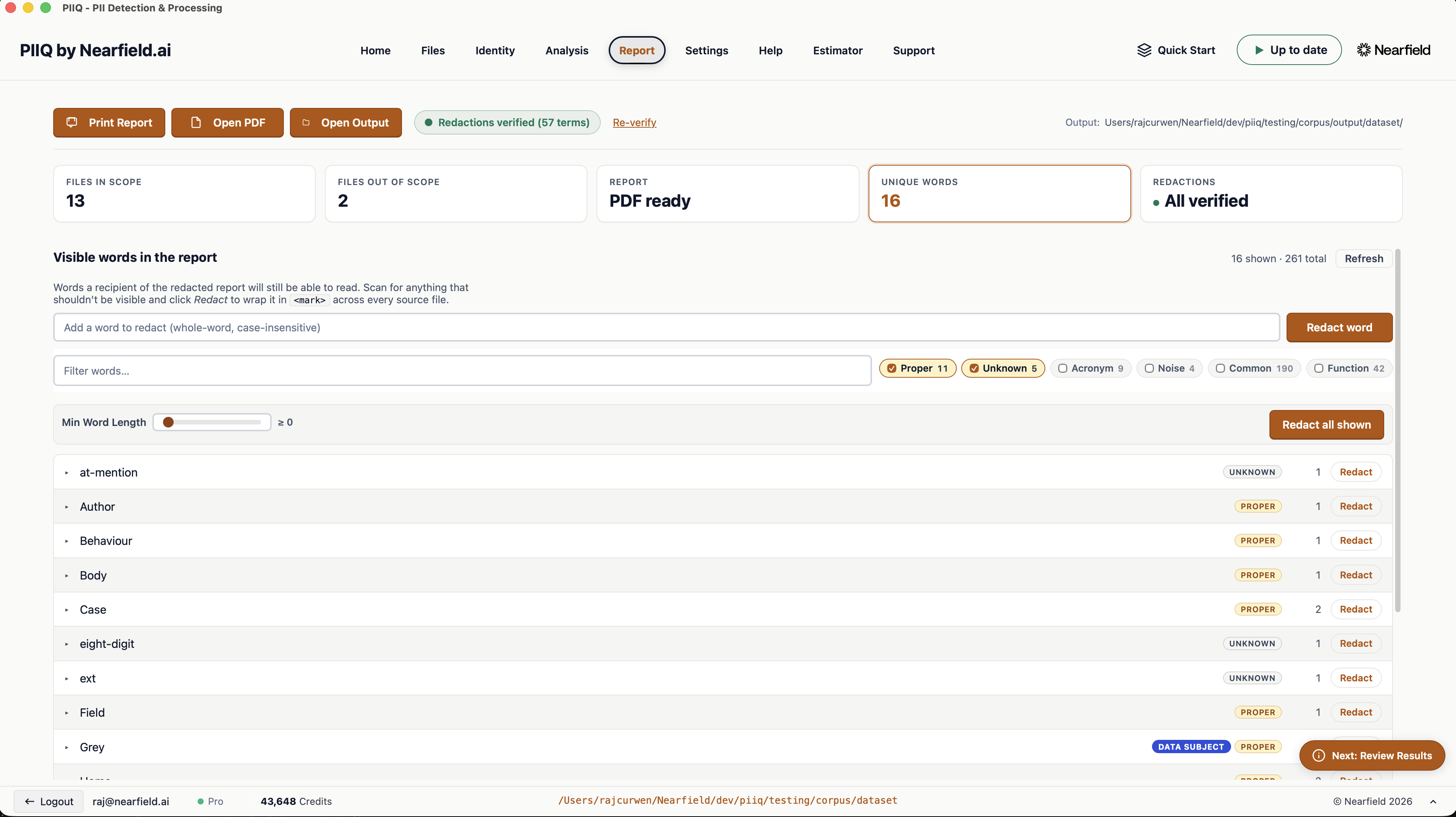
Before you disclose, the Report shows exactly what will and won't appear in the finished file. Redact hides a word everywhere it appears; anything left in the still visible list will be disclosed — right for the data subject and non-personal details, but one click to hide if a third party ever shows up there.
Redacted — hidden from the disclosure
Still visible — will appear in the disclosure
5. The result
The redacted email — the data subject's name kept, every third party covered, ready to disclose:
Dear Emma,
I am writing to share my growing concerns about Sarah Grey in my form group (9C). Over the past few weeks I have noticed a marked change in her behaviour and engagement.
Last week there was an incident during break time (IR-2024-0347 refers). I spoke briefly with Sarah's father, Thomas Grey, afterwards. He mentioned that Sarah has been reluctant to come to school.
I wonder whether a referral to Jane in SENCO might be appropriate at this stage.
Kind regards,
Lisa Cheng
Form Tutor - 9C
Greenfield Academy
That's a full SAR in miniature: scope, detect, decide, redact, disclose — and any change along the way is a click.
Your trial
A short, hands-on evaluation. Here's what you've got and how to make it count.
Credits — what Hunter runs cost; every other step is free. Your trial includes enough for two to five SARs.
SAR — a Subject Access Request: one person's request for their own data — the typical job to test.
What you've got
Your trial runs for 7 days, and we set you up with enough credits to run two to five full SARs. Only the Hunters step uses credits — Discovery, Analysis, reviewing and the report are all free (see Credits). Need more to finish your evaluation? Just ask.
How to test it
The best trial is a real one. Pick a SAR you'd normally do by hand and run it end-to-end:
- Do a SAR — point PIIQ at the folder, scope it, run the Hunters and analyse.
- Remediate — review the highlighted documents and fix any over- or under-redaction in a click.
- Ship — produce the redacted report and compare the effort against your current method.
What good looks like
A full SAR done end-to-end in well under an hour — with the odd redaction tuned or fixed in a click or two along the way.
When the trial ends
To keep going, buy a credit top-up or pick a plan from inside the app — you'll always see the price first. Credits stay valid for 12 months, and any discount code you were given at signup is applied automatically at your first checkout. Questions about your trial? Get in touch.
The workflow
PIIQ takes you from a folder of documents to a redacted report in seven steps.
Document Scope — the in/out-of-scope rules (set in Discovery) that decide which whole files are processed at all. It never redacts.
Unit of Inference (UoI) — the engine that runs detection during the Hunters step. Leave it on Next Available.
Credits — only the Hunters step uses them; every other step is free.
-
1
Select Directory FREEPoint PIIQ at the folder holding the case documents.
-
2
Add Data Subjects FREEName the person the request is about.
-
3
Run Discovery FREEWork out which files actually matter. Free, so run it as often as you like.What you can setData subjectAdd the names, emails and addresses of the person the request is about — type them in or import a CSV. Their data is kept; everyone else's is treated as third-party.In-scope keywordsOnly include files that contain these terms.Out-of-scope keywordsExclude files that contain these terms.Check filenames for scope keywords On by defaultApply the scope rules to file names, not just file content.Subword matchingPrefix a keyword with
*to match inside words —*GSMalso matches "GSMCARD".The Discovery dialog — data subject, plus in/out-of-scope keywords. -
4
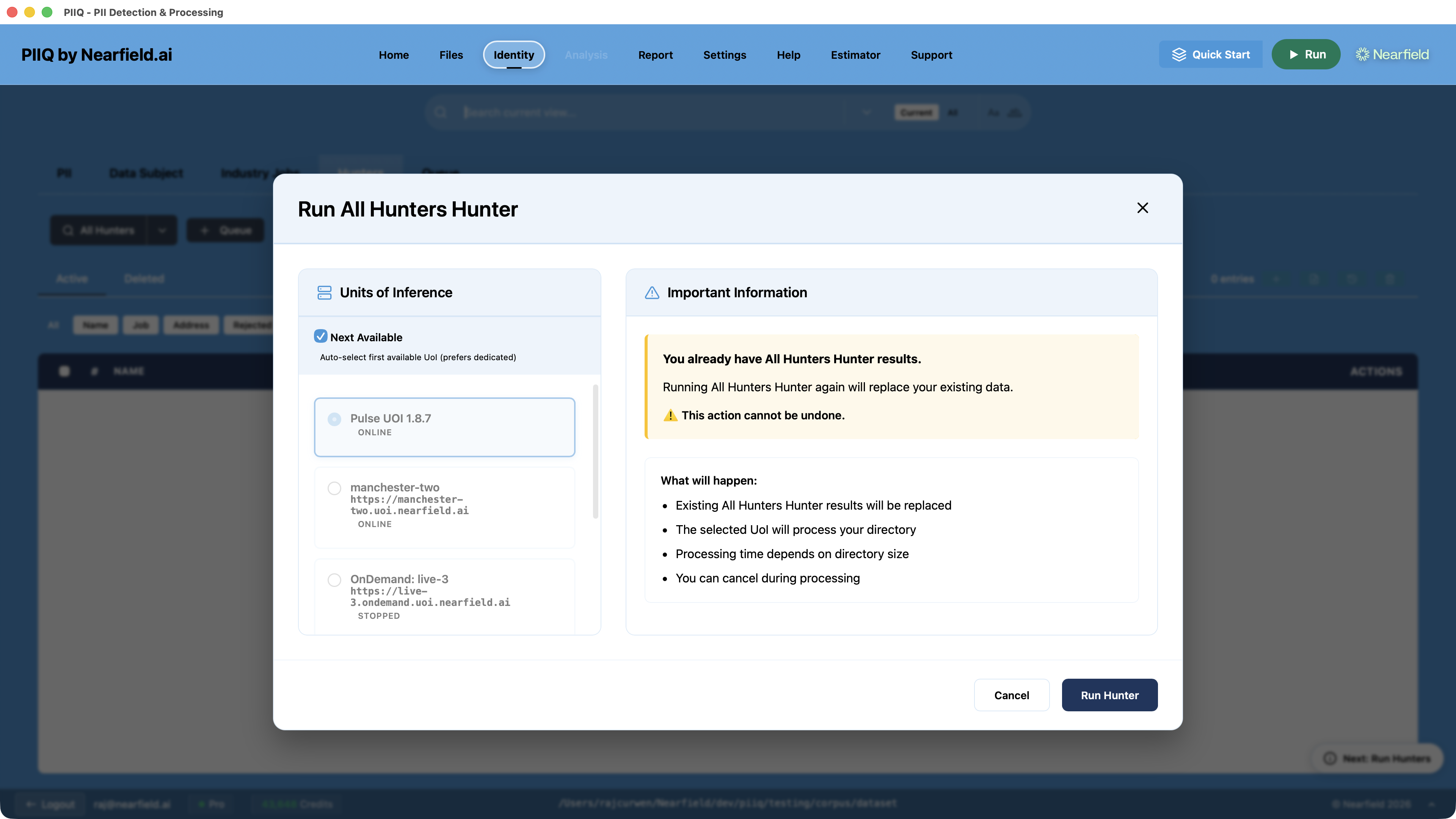
Run Hunters CREDITSFind names, jobs and addresses. This is the only step that uses credits.What you can setWhich huntersRun the Name, Job and Address hunters individually, or All Hunters together.Unit of Inference Next AvailableThe engine that runs detection on your files. Leave it on Next Available and PIIQ picks the next ready engine for you — there's nothing to set up.Re-runningRunning the hunters again replaces your existing results for the case.
Running the Hunters — the Unit of Inference is the engine that processes your files; "Next Available" picks one for you. -
5
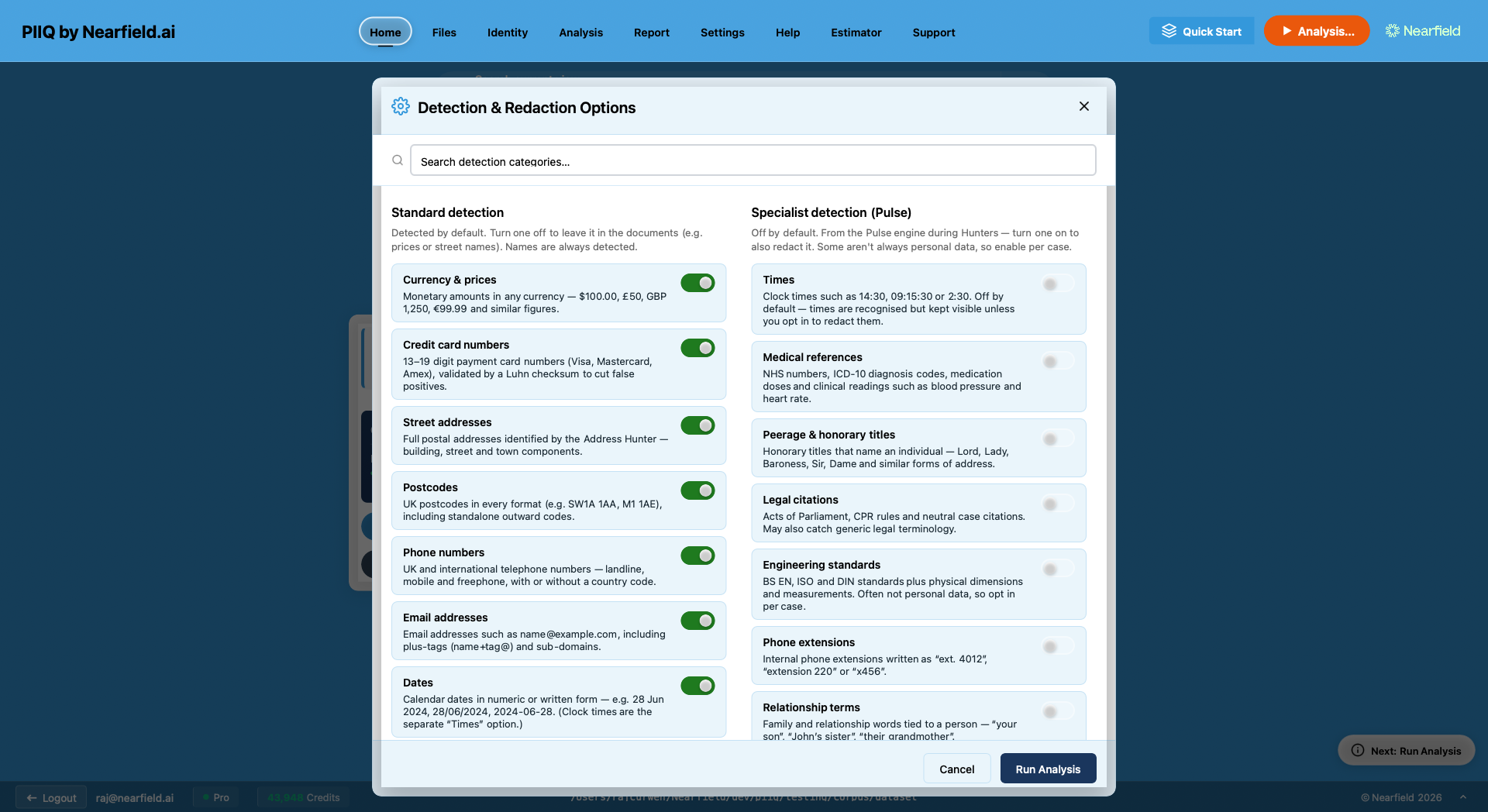
Run Analysis FREEMark everything found in each document, ready to review. Tune what counts as redactable from Detection & redaction options (the gear on the Analysis tab). Names are always detected.What you can setStandard detection On by defaultCurrency & prices, credit cards, street addresses, postcodes, phone numbers, emails, dates, and government & financial identifiers. Turn one off to reduce over-redaction.Specialist detection (Pulse) Off by defaultMedical, peerage & titles, legal citations, engineering standards, phone extensions, relationship terms and gender pronouns. Turn one on to catch more. Full list in Tuning detection.
Detection & redaction options — what counts as redactable. -
6
Check Results FREEReview and fix anything over- or under-redacted in a click.
-
7
Report FREEProduce the final redacted report, ready to disclose.What you can setOutput locationWhere the redacted report and files are written.Print all, or in-scope onlyProcess every file, or only those Discovery marked in-scope.Per-file PDFA separate PDF for each document instead of one combined report.Redact in original PDFsAlso produce redacted copies of the source PDFs.Clear destinationEmpty the output folder before writing the new files.
The Report — check what's still visible before you disclose.
Credits
Credits are simple: only the Hunters use them, and you always see the price first.
Credits — the currency a run costs. You always see the price before you commit.
Hunters — the Name, Job and Address detectors. They're the only step that uses credits.
- Only Hunters use credits. Discovery, Analysis, reviewing and the report are all free.
- Cost follows the data. The more files in scope, the more a run costs — trim the scope with Discovery and the price drops.
- You see the price first. Click the info icon next to "Required" before any run for the exact cost.
- Failed or cancelled runs are refunded. Nothing is taken until a run completes.
Common credit questions
My credits say "(X pending)" — where did they go?
They're held for the run that's currently in progress, and only taken when it finishes. If the run fails or you cancel it, they come straight back.
Does it charge me again to re-run a Hunter?
Every Hunter run costs credits, even on the same files. But your earlier results are saved with the case — you only need to re-run if the files or the scope have changed.
Does Discovery, Analysis or the report cost credits?
Only Hunter runs use credits. Scoping, analysing, reviewing, editing and producing the report cost nothing, so you can refine as much as you like.
Your data
PIIQ works on your machine. Your documents stay with you.
Hunters — the detection step, and the only one that sends anything off your machine (the in-scope text, to the UK).
In-scope files — the files Discovery decided are relevant; only their text is sent for the Hunters.
.piiq folder — the hidden folder beside your documents where all your case work is saved locally.
Where your data is processed
- On your device. Discovery, Analysis, your review and the final redacted report all run locally. Your source files never leave your machine.
- The one exception is the Hunters step. To find names, jobs and addresses, the extracted text of your in-scope files is sent to our inference engine in the UK (AWS, London) over an encrypted connection.
- Nothing is kept. That text is processed in memory and is not stored — temporary processing data expires within about half an hour. We hold no copy of your documents.
In short
Your files, your scope decisions, your edits and your finished report stay on your device. Only the text needed to run the Hunters is sent for processing, encrypted in transit, and not retained.
The details
- All of your case work is saved locally in the hidden
.piiqfolder beside your documents. - Connections use TLS encryption; your account and billing records held in the cloud are encrypted at rest.
- For the full picture, see our privacy policy or email compliance@nearfield.ai.
Always improving
Redaction is a hard problem, and we treat it as one we keep getting better at. PIIQ is never “finished” — the version you're trialling is sharper than the one before it, and it will keep improving.
How we keep raising the bar
Behind the scenes we continually put PIIQ through its paces against a wide range of realistic scenarios — the kinds of documents, layouts and awkward edge cases you meet in real work. We measure how completely and accurately it picks out what matters, and we look hard for where it could do better.
Better, without breaking what already works
When we find a way to improve a result, we make the change and check it carefully against real-world cases — so that making one thing better never quietly makes something else worse. Every release reflects that work.
Your trial helps
You're part of this. If something doesn't look right during your trial, tell us — Get support takes a moment, and what you flag helps shape what we improve next. Our commitment is simple: to keep making your results more accurate, more reliable and easier to trust.
Reviewing & fixing
This is where PIIQ earns its keep. Expect some over- and under-redaction — correcting it is a click, with every occurrence in one place.
The metric that matters
No tool is 100%. The win is that fixing the output here is far faster than redacting by hand — everything is laid out in one place, and a single change applies everywhere.
PII — personal data that should be redacted (names, emails, phone numbers, addresses).
Anti-PII (the −PII badge) — something you've marked as not personal, so PIIQ never redacts it.
Third party — anyone who isn't the data subject; their personal data is redacted.
What they are
Over-redaction
Something is blacked out that didn't need to be — a price, a street name, or a word that isn't personal data. The result is a disclosure that's harder to read than it should be.
Under-redaction
Personal data slipped through and is still visible — a third party's name, an email or a phone number. This is the one that matters: it means leaking someone's information.
Spotting it
You work across two views — one to decide, one to prove — and each is a safety net:
Analysis
Every detection is highlighted in the document as you read. Personal data with no highlight is an under-redaction; a highlight on something that isn't personal is an over-redaction. Right-click to fix either.
Report
Your final check. It shows exactly what the finished file will contain — too much blacked out is over-redaction; anything personal still showing is under-redaction. Catch it here before you disclose.
Dealing with it
While you review the highlighted documents in Analysis, right-click any text to correct it:
- PII — redact something that was missed.
- Not PII (shown as the -PII badge) — keep something that isn't personal.
- Remove — drop a redaction entirely.
Each choice is remembered by the word, so it applies to every occurrence across the whole case at once — fix it once and you won't miss the fifth mention of a name because you only saw the first.
Over-redacting a whole category — every price, every street? Don't fix them one by one; turn the category off in Tuning detection.
Worked examples
A third party slipped through
Reviewing Sarah Grey's records, you spot a grandmother's details still showing. Right-click Margaret Grey → PII. Every mention, in every document, is redacted.
Something was redacted that shouldn't be
The school's own name has been blacked out, but it isn't personal data. Right-click Greenfield Academy → Not PII, and it stays visible everywhere.
When you're happy, the Report is your final check before you disclose — see it in action in the Worked example.
Tuning detection
You decide what PIIQ treats as redactable. Open Detection & redaction options — the gear icon on the Analysis tab — and switch categories on or off to match your documents. Names are always detected and can't be switched off.
Two kinds of control — don't confuse them
PIIQ restricts a disclosure at two independent levels:
- Document Scope (set in Discovery) decides which whole files are processed at all — out-of-scope files are skipped entirely. It never redacts.
- Detection & the Lists decide what's redacted inside the files that are processed — the categories below, plus the per-case Lists on the Identity tab (PII always-redact, Anti-PII never, Data Subject kept, Industry Jobs kept).
In short: scope = which files; detection + Lists = what's redacted.
Detection categories — the kinds of data PIIQ looks for (prices, dates, postcodes, medical…), each switchable on or off here.
Pulse — the engine behind the Specialist categories; they're detected during the Hunters step and are off by default.
How to use it
- On the Analysis tab, click the gear — Detection & redaction options. (It also opens automatically before your first analysis run.)
- Turn categories on or off to suit your data.
- Click Save, or Run Analysis to apply straight away. Re-running after a change is free, so it's quick to dial in.
Standard detection
On by default. Turn one off to stop it being redacted.
- Currency & prices — amounts like £100 or $50. Turn off for invoices or price lists where money isn't personal.
- Credit card numbers — 13–19 digit card numbers. Usually best left on.
- Street addresses — postal addresses found by the Address Hunter. Turn off when the streets aren't about your subject.
- Postcodes — UK postcodes.
- Phone numbers — UK and international numbers.
- Email addresses — e.g. name@example.com.
- Dates & times — dates and timestamps. Turn off to cut noise in date-heavy logs.
- Government & financial identifiers — NI, passport, driving licence, tax code, IBAN, sort code, account number. Keep on for financial or HR records.
Specialist detection (Pulse)
Off by default. These come from the Pulse engine during the Hunters step — turn one on to also redact it. Some aren't always personal data, so enable them per case. Anything one-off can still be marked by hand as you review (see Reviewing & fixing).
- Medical references — NHS numbers, ICD-10 diagnosis codes, medication doses and clinical readings.
- Peerage & honorary titles — Lord, Lady, Baroness, Sir, Dame and similar forms of address.
- Legal citations — Acts of Parliament, CPR rules and case citations. May also catch generic legal terms.
- Engineering standards — BS EN / ISO / DIN standards and measurements. Often not personal, so opt in per case.
- Phone extensions — e.g. "ext. 4012", "extension 220", "x456".
- Relationship terms — e.g. "your son", "John's sister", "their grandmother".
- Gender pronouns — he / she / him where they refer to a named individual nearby.
Common questions
The things trial users ask us most often.
A Hunter run took much longer than last time
Run time depends on how much data is in scope, and Outlook mailboxes and Office files are converted to text first, which adds time up front.
If you can see a countdown, a cloud engine is starting up just for your run — that alone adds about two minutes before anything else happens.
The progress bar jumped backwards
Big jobs run in batches, and the bar restarts at each new batch. The run is still moving forward.
I changed folder and my old results came back
Each case folder keeps its own work, so when you come back to a folder, your Discovery and Hunter results are restored — you don't have to re-run anything or pay again.
Cases never mix: anything on screen from the previous case is cleared the moment you switch.
There's a "PIIQ" folder left in my source directory
That folder is where PIIQ saves this case's work — your scope, results and any fixes you make. It's exactly why coming back to the folder restores everything with no re-run and no extra credits.
It sits alongside your documents and never changes them. You can leave it in place.
Typing a name doesn't bring the person up
Start typing a name that appears in your files and matching people surface as you type — pick one to add them, along with details like their email.
If nothing appears, run Discovery first so PIIQ has scanned the documents, then try again.
I can't find the Run Hunters button
Look top-right for the big green button — it reads Start or Run depending on what's next, and runs the pipeline a step at a time. A "Next: Run Hunters" prompt also appears in the bottom-right. Or open the Identity tab and use the Hunters section directly.
Is it a bug?
A quick check before you report something.
Probably working as designed
- A Hunter run taking longer than a previous one — see Common questions.
- Old Discovery or Hunter results reappearing when you return to a folder.
- Credits shown as "pending" while a run is in progress.
- The progress bar restarting partway through a large run.
- A short countdown before processing starts — a cloud engine booting.
- Some over- or under-redaction — that's review-and-fix, see Reviewing & fixing.
Likely a bug — please tell us
- An error message that stops you completing an action.
- A run that never finishes, with no progress for a long time.
- Results that are clearly wrong or missing — e.g. names you can see that no Hunter found.
- Credits taken with no results produced.
- Anything that crashes the app or freezes a screen.
Before you report
Check the relevant topic above, try the action once more, and note the exact time it happened — that lets us find it in our logs. Then get support. Any credits lost to a fault on our side come back to you.
Get support
A person will get back to you — we read every message.
The button below starts an email with the questions we'll ask already filled in. The more detail you give, the faster we can help.
Email support
If you can, attach the newest file from your log folder —
Mac: ~/Library/Logs/PIIQ/ Windows: %LOCALAPPDATA%\PIIQ\logs\
Question about payment or invoices instead? billing@nearfield.ai